Changing Your Password
This document explains how to change or reset your password for a Simplified Solutions account. Password resets are handled through email to ensure that only the account owner can initiate the process.
The steps and outcome depend on how your account was originally registered, either through email and password or through Google sign-in.
Starting a Password Reset
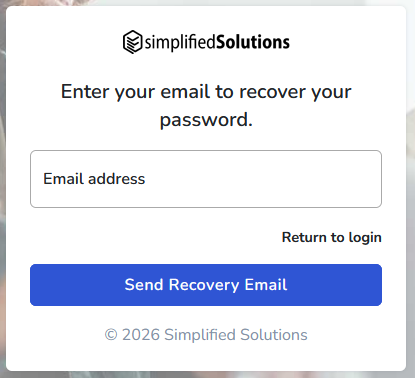
To begin, select the option to reset your password on the sign-in page. You will be prompted to enter the email address associated with your account.
If the email address is linked to a Simplified Solutions account, a reset email will be sent. If the email address is not associated with an account, no email will be sent.
Password Reset for Email-Based Accounts
For accounts registered using an email address and password, the reset email will include a secure link.
Clicking the link will take you to a page where you can enter and confirm a new password. For security reasons, the link is time-limited and can only be used once.
After submitting a new password, you can immediately sign in using your updated credentials.
Password Reset for Google-Registered Accounts
If your account was created using Google sign-in, you do not have a separate Simplified Solutions password to reset.
In this case, the reset email will explain that the account is linked to Google and will recommend signing in using the Google option instead.
If you need to change your Google account password, this must be done through Google directly.
Security Considerations
Password reset emails are only sent when a valid account email is provided. This helps prevent unauthorized users from learning whether an account exists.
If you receive a password reset email that you did not request, no action is required unless you are concerned about account security. In that case, signing in and updating your password is recommended.