Step by step: Build a Discount Code from a Template
Once your Partner account is active, you can create discount codes that new organizations will use during signup. Discount codes are generated from pre-supplied Partner templates to ensure that discounts and payout structures are applied correctly.
Where to Create a Discount Code
Navigate to the Partner > Discount Codes section of the portal. From there, select the option to create a new discount code.
This will open the “Create a custom code from a template” form.
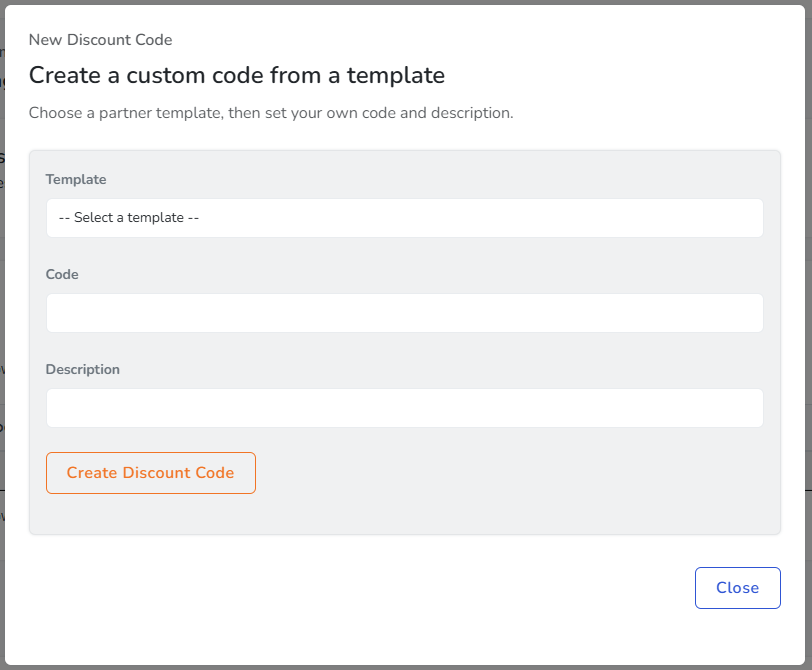
Step 1: Select a Template
Begin by selecting a Partner template from the Template dropdown.
Templates define:
- The discount structure applied to the new Organization
- Any duration limits for the discount
- How the Organization will be associated with your Partner account
Templates are pre-configured to align with your Partner agreement and cannot be modified directly.
Step 2: Enter a Code
Next, enter a unique code in the Code field. This is the value your customers will type in during Organization signup.
Best practices for code names include:
- Keeping the code short and easy to type
- Avoiding special characters or spaces
- Using a name that aligns with your brand or campaign
Each code must be unique within the system.
Step 3: Add a Description
Add a description of what the discount code does. This description will be visible to your child organizations when they view their own billing information.
Step 4: Create the Code
Click Create Discount Code to finalize the setup.
Once created, the code becomes active and can immediately be shared with prospective customers.
What Happens Next
When a new Organization uses your discount code during signup:
- The Organization becomes linked to your Partner account.
- The discount is automatically applied according to the selected template.
- Eligible payouts for that Organization are tracked under your Partner dashboard.
Discount codes cannot be retroactively applied after an Organization has already been created, so it is important that customers enter the code during initial signup.