Managing Members
This document explains how to manage members within an Organization. From the Access Permissions page, administrators can invite new members, view existing access, and control who can manage or view the Organization.
Managing members allows you to share access with coworkers, IT staff, or trusted partners while maintaining clear control over permissions.
Accessing Access Permissions
To manage members for an Organization, navigate to My Organizations > Access Permissions.
This page lists all users who currently have access to the Organization, along with their email address, name, and permission level.
Viewing Current Members
Each row in the access list represents a user who has access to the Organization.
For each member, you can see:
- Email used to access the Organization.
- Name associated with the account.
- Status indicating the permission level, such as standard user or Organization administrator.
This view helps administrators quickly confirm who has access and what level of control they have.
Inviting a New Member
To invite a new member, select Create Access Invitation.
A dialog opens allowing you to enter the email address of the person you want to invite.
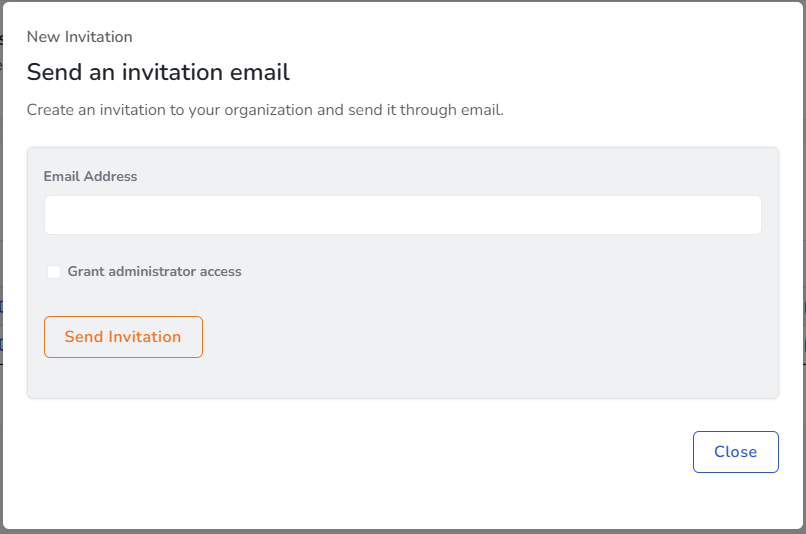
The email address entered must match the email address of the Simplified Solutions account that will accept the invitation.
Selecting Permission Level
When sending an invitation, you can choose whether to grant administrator access.
- Standard access allows the user to view devices, dashboards, and activity.
- Administrator access allows the user to manage members, billing, Organization settings, and other administrative features.
Choose the appropriate level based on the responsibilities of the person you are inviting.
Sending the Invitation
After entering the email address and selecting permissions, send the invitation. The system generates an invitation key and sends it by email to the recipient.
The invited user must sign in with a Simplified Solutions account using the same email address and accept the invitation to gain access.
Managing Ongoing Access
Once a user has accepted an invitation, they appear in the access list with their assigned permission level.
Administrators can return to the Access Permissions page at any time to review current members and ensure access remains appropriate as roles and responsibilities change.
Keeping member access up to date helps maintain security while ensuring the right people have visibility and control over the Organization.