Renaming a Device
By default, devices are identified using the system-reported name provided by the operating system or cloud environment. In some cases, this name may be long, unclear, or not meaningful to your team. Simplified Solutions allows you to assign a custom nickname to a device, which will then be displayed throughout the portal wherever the device name appears.
Where Device Nicknames Are Used
Once a nickname is set, it becomes the primary label for the device across the platform. This includes the dashboard, device lists, alerts, and the device details page. The original system name is still retained internally, but the nickname is shown to make identification easier and more intuitive.
Renaming a Device
To rename a device, start by navigating to the Device Details page for the device you want to update. At the top of the page, you will see the device name displayed in the header, followed by a small edit icon.
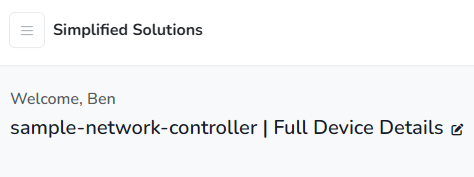
Clicking the edit icon opens a modal window where you can manage the device nickname.
Managing the Nickname
Within the rename modal, you can perform any of the following actions:
- Add a nickname if the device does not currently have one.
- Change an existing nickname to something more descriptive.
- Remove the nickname, which will cause the system to fall back to displaying the original system-reported name.
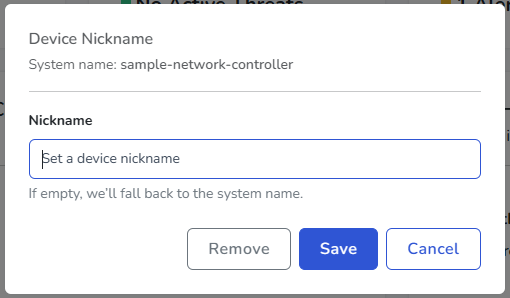
If the nickname field is left empty and saved, the system will automatically revert to using the device’s system name.
When to Use Device Nicknames
Device nicknames are especially useful in environments with many similar systems, such as cloud servers, virtual machines, or standardized workstation builds. Assigning clear, human-friendly names can make alerts easier to understand and help administrators quickly locate the correct device when reviewing the dashboard or responding to issues.
Nicknames can be updated at any time and do not affect device functionality, monitoring, or billing.