Viewing Device Details
The Devices section allows you to view, filter, and inspect all devices enrolled in your Organization. From here, you can quickly assess overall device health or drill into a single device to see detailed status, configuration, and recent activity.
This document explains both the device list view and the detailed device view, including the information shown on each screen and the actions that can be performed.
Device List and Search
The device list provides a searchable, filterable table of all enrolled devices. This view is designed to help you quickly locate devices and identify those that may need attention.
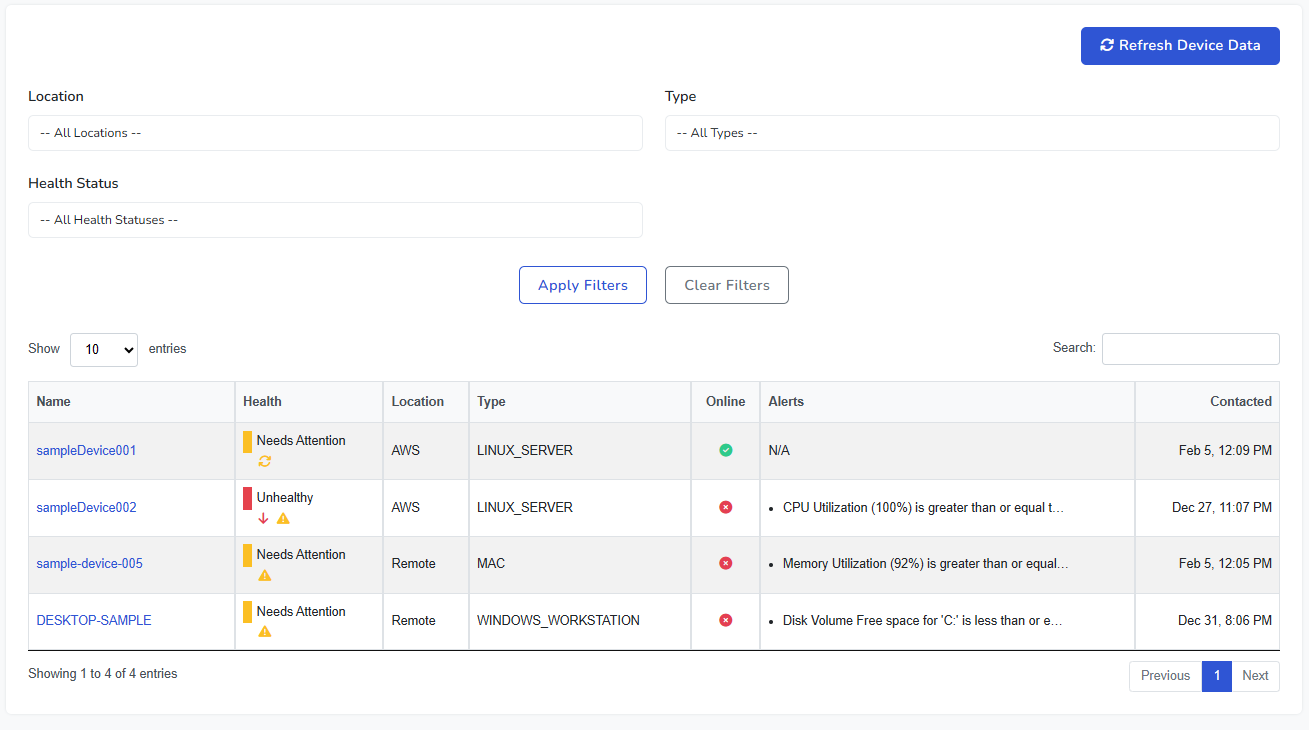
You can filter devices by:
- Location to narrow results to a specific site or environment.
- Type to view only certain device categories, such as servers or workstations.
- Health Status to focus on devices that are healthy, need attention, or are unhealthy.
Each row in the table shows key information, including the device name, current health state, location, type, online status, recent alerts, and last contact time.
Selecting a device name opens the detailed device view.
Device Details Overview
The device details page provides a comprehensive view of a single device. At the top of the page, you will see a set of status indicators summarizing the device’s current condition.

These indicators provide quick insight into areas such as overall health, antivirus status, active alerts, and recent activity. Each indicator also acts as an anchor link, allowing you to jump directly to the corresponding section further down the page.
Device Actions
The Device Actions button provides access to actions that can be performed on the selected device. These actions communicate directly with the underlying management agent.
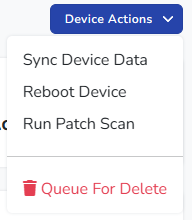
- Sync Device Data requests the latest device information from the agent and updates the dashboard.
- Reboot Device sends a reboot request to the device. This can be initiated as a normal reboot or a forced reboot if required.
- Run Patch Scan requests a scan for available updates. You can choose to scan operating system updates, installed software updates, or all update types.
- Move to Another Location reassigns the device to a different location in your Organization.
- Queue for Delete marks the device for removal. This process removes the device from management, including uninstalling the agent and any managed components such as antivirus or backups.
Updating Device Location
You can move a device to another location directly from the device details page in two ways:
- Use Device Actions > Move to Another Location.
- Select the inline edit icon next to the device’s current location in the summary area.
After saving, the device’s assigned location is updated and reflected throughout the portal.
Device Summary
The Device Summary section provides identifying and connection details for the device, such as its name, operating system, location, network information, and last contact time.
This section is useful for confirming that you are viewing the correct device and understanding its basic characteristics.
Device Health
The Device Health section summarizes the current health state of the device. It includes information such as active alerts, pending updates, threats, and job status.
This section helps explain why a device may be marked as healthy, needing attention, or unhealthy.
Antivirus
The Antivirus section shows the status of managed antivirus and next-generation antivirus protection on the device.
It includes whether protection is enabled, the last update time, and whether any recent threats have been detected.
Alerts
The Alerts section lists known issues specific to the device. If no alerts are present, this section confirms that there are currently no outstanding issues.
Alerts shown here correspond to those visible in the main Alerts section of the Dashboard.
System
The System section provides hardware-level information about the device, including manufacturer details, system type, and installed memory.
This information can be useful when identifying device capabilities or diagnosing issues.
Operating System
The Operating System section displays details about the installed OS, including version, architecture, last boot time, and reboot requirements.
If a reboot is required to complete updates, it will be indicated here.
Processor
The Processor section provides information about the device’s CPU, including model, architecture, and core counts.
This data helps provide context for performance-related alerts or workloads.
Volumes
The Volumes section shows storage volumes detected on the device, along with file system type and available space.
Visual indicators make it easy to identify volumes that may be running low on free space.
Network Addresses
The Network Addresses section lists IP and MAC addresses associated with the device.
This information can be helpful for network identification and troubleshooting.
Activities
The Activities section provides a chronological log of actions performed on or by the device. This includes software updates, patch installations, scans, and other automated tasks.
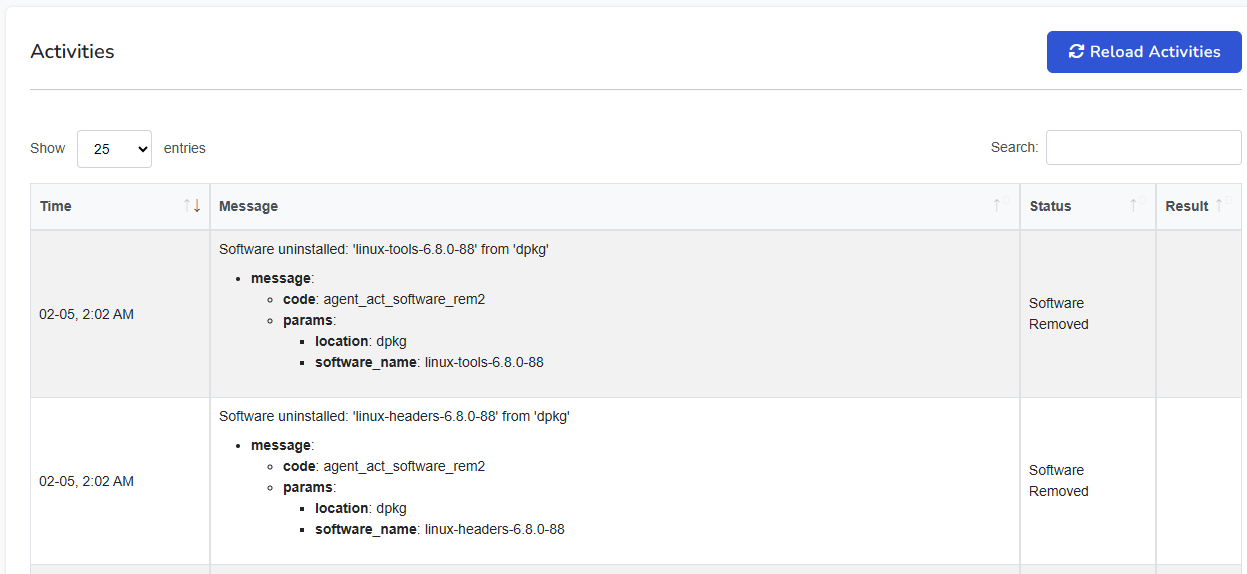
Activities offer transparency into what the system is doing behind the scenes and help demonstrate ongoing maintenance and protection over time.
Note: Some screenshots on this page may show earlier layouts. If a screenshot differs from your current portal, follow the live labels and controls in your current Device Details page.