Updating Organization Details
This document explains how to view and update details for an existing Organization in Simplified Solutions. Organization details control how your Organization is identified, how certain data is displayed, and which features are available to enrolled devices.
Only users with administrator access can update Organization details.
Viewing Your Organizations
To manage an Organization, navigate to My Organizations > Organization Details. This area lists Organizations you belong to. You may belong to multiple Organizations, but only one Organization can be active at a time.
The active Organization is clearly indicated in the list. If needed, you can switch your active Organization from this screen.
Opening Organization Details
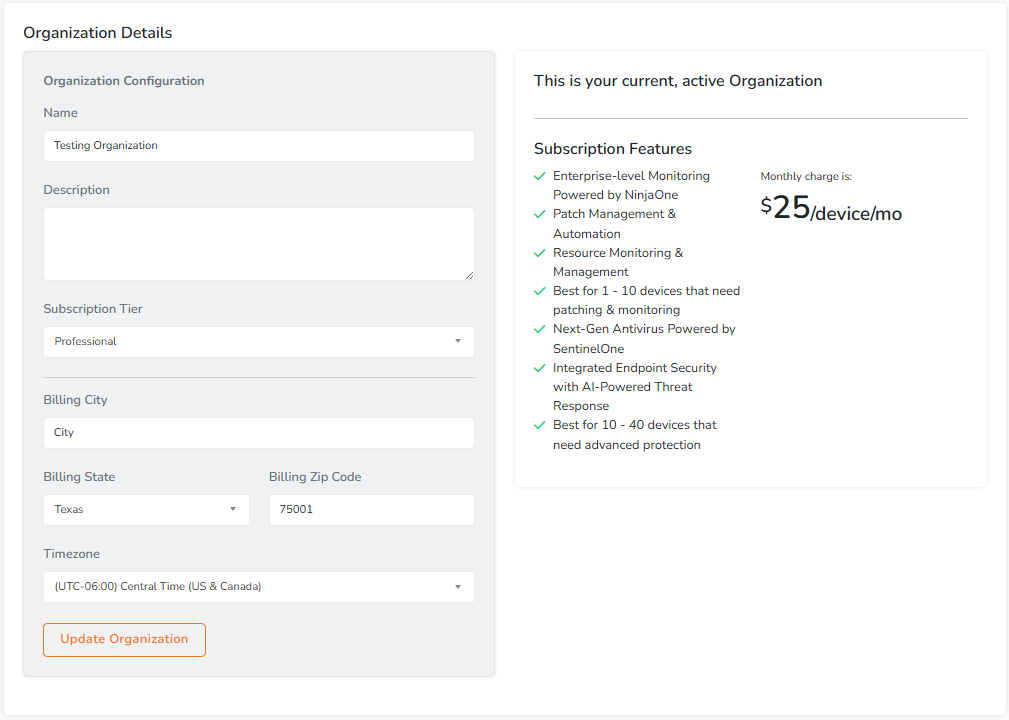
Selecting an Organization opens the Organization Details page. This page allows you to view and edit configuration settings for the selected Organization.
If the Organization is your current active Organization, this is also indicated at the top of the page.
Updating Organization Information
The Organization Configuration section allows you to update basic information used throughout the platform.
- Name is the display name of the Organization. This can be changed at any time and is used throughout the dashboard and reports.
- Description is an optional field used to further identify the Organization.
- Billing location fields are used for billing and tax calculation purposes.
After making changes, select the option to update the Organization to save your changes.
Managing Locations
Location management is available under My Organizations > Locations. This page is used to manage the locations devices can be assigned to within the Organization.
From the Locations page, administrators can add locations, rename locations, and remove non-default locations that are no longer needed. The default location remains available and cannot be deleted.
These location settings affect device assignment and filtering throughout the portal, including device lists and move-to-location actions.
Changing the Subscription Tier
Administrators can change the Organization’s subscription tier directly from the Organization Details page.
Changing the subscription tier updates which features are available to devices in the Organization. Existing devices do not need to be reinstalled for tier changes to take effect.
A summary of the features included in the selected subscription tier is displayed alongside the configuration fields for easy reference.
Timezone Settings
The timezone setting controls how dates and times are displayed throughout the platform, including reports, activity logs, and billing information.
Selecting the correct timezone helps ensure that timestamps align with your local business hours and expectations.
Subscription Feature Summary
The right-hand column of the Organization Details page displays a summary of the features included with the current subscription tier.
This summary provides a quick reference for what is enabled for the Organization, helping administrators understand how changes to the subscription tier affect device protection and management.
Keeping Organization details and locations up to date ensures accurate reporting, consistent behavior across devices, and proper access to the features your Organization depends on.
Note: Some screenshots may show an earlier navigation layout. If menu labels differ slightly, use the current My Organizations navigation in your portal.