Joining an Existing Organization
This document explains how to join an existing Organization in Simplified Solutions. Joining an Organization allows you to access its devices, dashboard, and settings based on the permissions granted to you by an administrator.
To join an existing Organization, you must receive an invitation key from an administrator of that Organization. Invitation keys are generated and managed within the platform and are tied to a specific email address.
Receiving an Invitation
An invitation can only be sent by an administrator of an existing Organization.
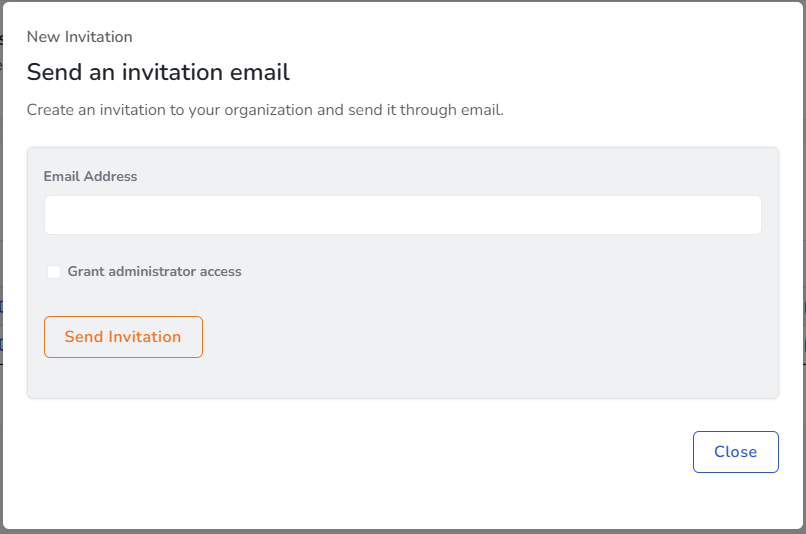
To generate an invitation, an administrator navigates to My Organizations > Access Permissions and selects the option to create a new access invitation.
The administrator enters the email address of the person being invited and selects the appropriate permission level, such as standard access or administrator access.
An invitation email is then sent containing an invitation key.
Invitation Email and Key
The invitation email includes an invitation key and instructions for joining the Organization. In some cases, the email may also include a direct link that automatically applies the key.
The email address used to receive the invitation must match the email address of the Simplified Solutions account used to accept the invitation. If the email addresses do not match, the invitation cannot be accepted.
Accepting an Invitation
To accept an invitation, sign in to your Simplified Solutions account and choose the option to join an existing Organization.
Enter the invitation key exactly as it appears in the email. Invitation keys follow a standard format and are validated when submitted.
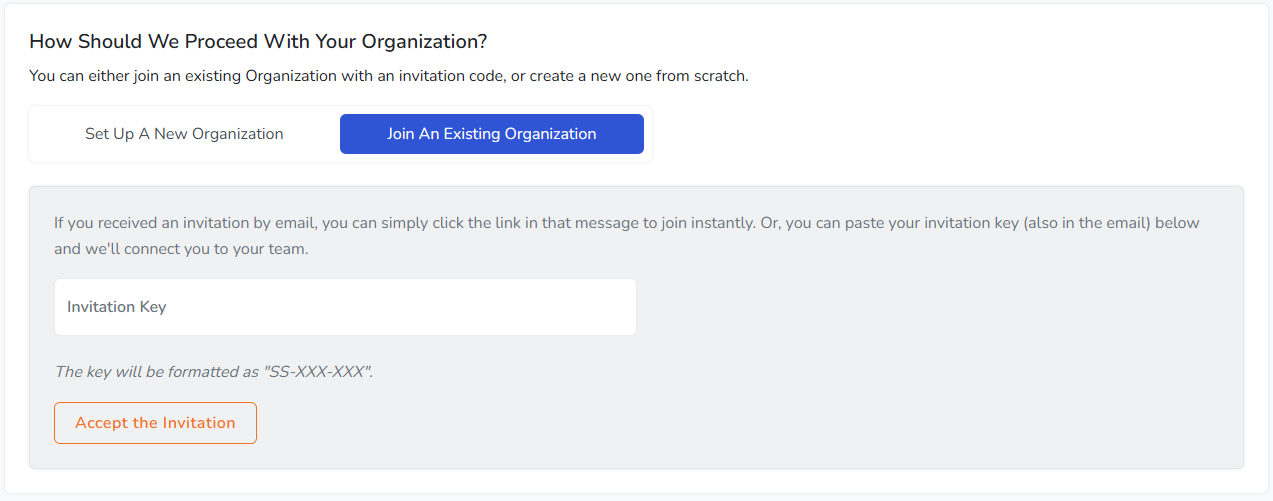
If the key is valid, the Organization is added to your account immediately.
Access Levels and Permissions
Your level of access depends on the permissions selected when the invitation was created.
- Standard access allows you to view devices, dashboards, and activity.
- Administrator access includes additional permissions to manage users, billing, and Organization-level settings.
Once accepted, the Organization becomes available in your account, and you can begin viewing or managing it according to your assigned role.