Creating an Organization
This document explains how to create a new Organization in Simplified Solutions. An Organization represents a single business, nonprofit, church, or other entity whose devices will be managed, protected, and billed together.
Creating an Organization is a guided process that collects basic information, allows you to select a service level, and securely sets up billing so devices can be protected without interruption.
Choosing How to Proceed
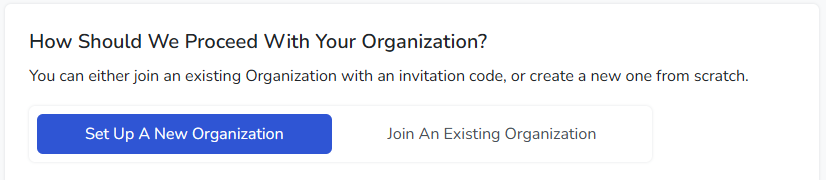
When you begin the setup process, you are asked how you would like to proceed. You can either create a new Organization from scratch or join an existing Organization using an invitation code.
This document focuses on creating a new Organization.
Entering Organization Information
The first step in creating an Organization is providing a name. This name is used throughout the platform to identify the Organization and can be changed later if needed.
The Organization name does not need to be final or formal. Many customers start with a simple name and refine it later as their setup evolves.
Selecting a Service Level
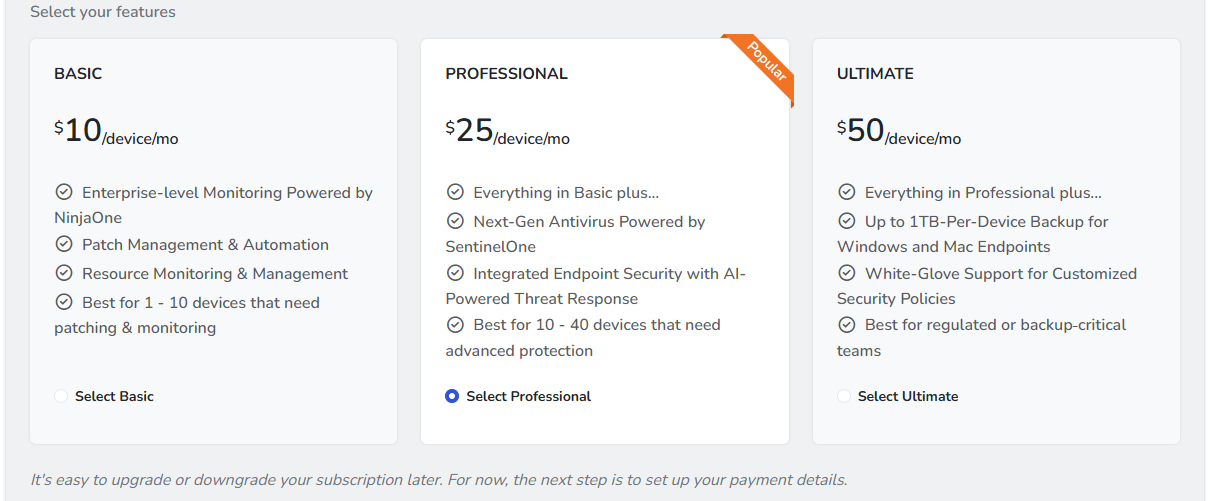
Next, you select the service level that best fits your needs. Each option builds on the previous one and determines which features are available for devices enrolled in the Organization.
You can change your service level later if your needs change. Upgrades and downgrades are designed to be straightforward and do not require reinstalling agents on existing devices.
Providing Payment Information
To complete Organization setup, you are asked to provide a payment method. Billing is handled securely through Stripe, and credit card details are never stored on Simplified Solutions servers.
Although a payment method is required during setup, you are not charged immediately. Charges are calculated based on active devices and are invoiced automatically as part of the normal billing cycle.
If you have received a discount or promotional code, it can be entered during this step and will be applied automatically.
Creating the Organization
Once all required information has been entered, select the option to create your Organization. The Organization is created immediately and becomes available in your account.
After creation, you can begin generating installers, enrolling devices, and viewing activity on the dashboard right away.
During creation, an initial default location is automatically created for the Organization. This default location is used as the installer location by default during installer generation.
From this point forward, all devices, billing, and management actions related to this Organization are grouped together, making it easy to manage and scale over time.